
|
|---|
⏱️ 5 minute read
Timesheets serves as the central hub for team member timesheets to streamline time tracking and ensure accurate reporting and forecasting. Timesheets enables team members to manage their personal timesheets, log work hours, and track time spent on internal activities such as meetings, company events, and team stand-ups.
This article covers:
Accessing Timesheets
- Click My Work in the navigation bar.
- Select My Timesheets from the dropdown.
Using Timesheets
Register, edit, and delete time entries all in one place. Timesheets combines your calendar, timesheet, and AI-driven features to make time reporting easier and more efficient than ever.
Calendar View
The Calendar displays all time that you have reported.
- Weeks begin on Sunday or Monday, depending on the Language setting in your user profile.
- (For Europe, week start is Monday. For US, week start is Sunday).
- Week Total is Registered Hours / Total Working Hours.
Days appear shaded with the following colors:
| Calendar Shading | Definition |
|---|---|
| White | Total time entries are less than total working hours. |
| Green | Total time entries meet or exceed total working hours (day/week). |
| Gray Striping | Weekends, time-off or company holidays. |
- A warning icon appears for past weeks where total time registered is less than total working hours.
Timesheet View
Located below the calendar, your Timesheet consists of two sections: Timesheets and Find Tasks.
Timesheets
Timesheets displays tasks and subtasks that have time registered within the selected time range as well as internal time entries and time-off.
- Use Copy Previous Day/Week to duplicate your prior time entries for the current week.
- Reveal predictive AI suggestions based on your work patterns and machine learning models with Show Suggestions.
Internal Time
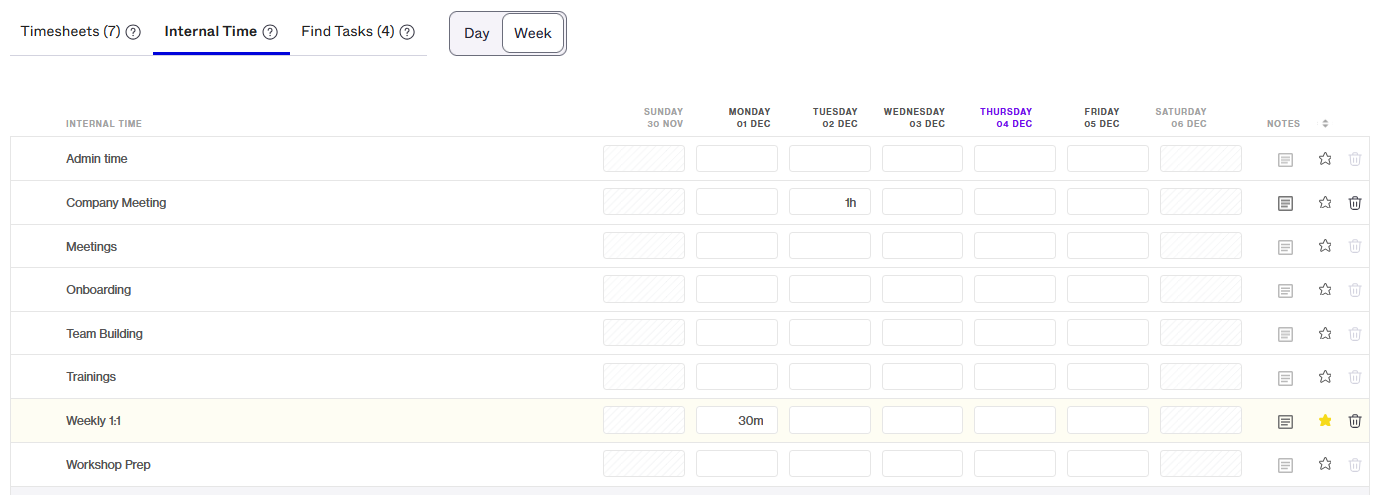
Internal Time displays all internal time categories. Enter time directly into the cell corresponding to the internal time category and date.
- Notes: Enter notes for the internal time entry.
- Star: Mark internal time categories as favorites.
- Delete: Remove an internal time entry.
Find Tasks
Find Tasks displays tasks and subtasks based on your current filter settings. Apply a filter or use the additional features to easily find tasks. Enter time directly into the cell corresponding to the task and date.
- Search (in the top ribbon): Search for tasks by name or ID.
- Eye: Show or hide columns such as Client, Phase, Project ID, Project Name, or Remaining Time.
- Filter: Customize your filter combinations to refine task searches by Client, Project, Phase, Task Status, and more. Save your filter configurations for quick access in the future.
To assist you in finding the right task, Find Tasks features an improved Filter section. When you create and save a new filter combination, a quick-access button will be added. There are two default quick-access filter buttons, Favorite Tasks and My Tasks.
Favorite Tasks: Quickly access tasks you’ve starred.
- Using the quick-access button applies 2 filters to the task list displayed in Find Tasks:
- Assignee = the logged-in user
- Marked as = Starred
My Tasks: Quickly access tasks assigned to you.
- Using the quick-access button applies 1 filter:
- Assignee = the logged in user
The list of tasks appearing in Find Tasks depends on the date selected in the calendar (Day or Week).
- If a task's dates do not fall within the day or week selected in the calendar, the task will not appear.
Accounts enabled to Allow time entries outside of task dates have additional functionality offering options to clear the selected date range and view all tasks, regardless of task dates.
To clear dates in Find Tasks
- From Timesheets, navigate to Find Tasks.
- The task list displays tasks whose dates fall within the time period selected in the calendar, Day or Week.
- The date selection appears above the list of tasks.
- Click the X next to Showing tasks for ... to clear the date range.
- The task list updates to return all tasks regardless of task dates.
- Click the X next to Showing tasks for All Time to reapply the date range as selected in the calendar.
Admins determine which Time Management settings are enabled for your account.
- To learn more about the various settings available see: Overview of Time Management Settings.
Creating a New Time Entry
While there are several ways to register time in Forecast, Timesheets provides the most intuitive and comprehensive user experience. In addition to using Find Tasks, time can be registered using the New Time Entry form.
To register time using New Time Entry
- From My Timesheets, click Add Time Entry.
- When screen width ≥ 1720px: Create Time Entry opens as a side panel to the right of the calendar.
- When screen width < 1720px: Create Time Entry opens as a pop-up centered over the calendar
- Click the Search bar to find a task, project or internal time type.
- Use Show All to filter by Task, Project, or Internal Time Type or enter a Task ID, task name, keyword, or select from Suggestions.
- Complete the form by adding your hours and any notes for the time registration.
- Click Save Time Entry.
The new time entry will appear in Timesheets and on the calendar. The Timesheet Total updates to reflect all time entries and the total working hours for the week.
Managing Time-off
Time-off is registered by using Create or by creating a time-off allocation in People Schedule. When a schedule allocation is created, a corresponding entry will appear automatically in Timesheets.
- To learn how to report your time-off, see: Entering Time-Off in Forecast.
Comments
0 comments
Article is closed for comments.